Twitter/X 4-Split Export - Tap-to-Reveal Grid
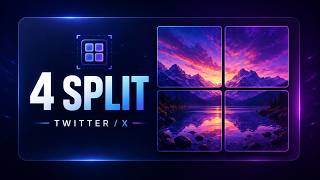
Turn one image into four 700×400 JPEG tiles arranged for Twitter/X's 2×2 grid. The image is resized to cover a 1400×800 canvas, centered, and sliced into four equal pieces. Upload all four to a single tweet and the grid composes back into the full image — with a tap-to-reveal effect as readers click through.
Split an Image for Twitter/X
4 tiles, 700×400 each, exported as JPEG
Select the Twitter 4-Split preset and a 2×2 grid overlay appears on your preview. Hit Export and the app writes four JPEG files — one per tile, named _twitter_1 through _twitter_4 — ready to drag into a tweet.
Note: Single preset built in. Works offline — no uploads, no accounts, no watermarks.
How the 2×2 Grid Is Built
One image becomes four 700×400 tiles that Twitter/X re-composes into a single seamless preview.
1 Cover-resize to 1400 × 800
Your source image is scaled to fully cover the target canvas, preserving aspect ratio. Overflow is cropped from the center — same behavior as CSS background-size: cover.
2 Slice into 2 × 2 grid
The canvas is split into four equal 700 × 400 tiles — each a 2:1 aspect ratio, matching Twitter/X's grid slots.
3 Export 4 JPEGs at quality 92
Tiles are written as {base}_twitter_1.jpg through _twitter_4.jpg. Drag them into Twitter/X in numeric order.
Why Desktop 4-Split Export Beats Manual Cropping
| Feature | Online Tools | Diwadi Desktop |
|---|---|---|
| Upload Required | ❌ Required | 🎯 Never |
| File Size Limit | ❌ 50MB max | ♾️ Unlimited |
| Speed | ⏳ Slow (upload/download) | ⚡ Instant |
| Batch Processing | ❌ 1 file | ✅ 1000s |
| Privacy | ⚠️ Risky (cloud upload) | 🔒 100% Local |
| AI Features | ❌ No | 🤖 Yes |
| Offline | ❌ No | ✅ Yes |
| Cost | Free | Free ✅ |
How It Works
Download & Install
Takes just 30 seconds. No account, no credit card required.
Browse & Select Your Image (PNG, JPG)
Navigate your files like a regular file browser. Batch processing supported.
Get 4 × JPEG Tiles (700×400 each) (Instant)
Processing happens locally on your computer. No upload wait.
Why Choose Diwadi Desktop?
Privacy First
Files never leave your computer. No cloud upload, no data collection, 100% local.
Lightning Fast
Process files 10x faster than online tools. No upload wait, no download wait.
No Limits
Convert unlimited files of any size. Batch process thousands in one click.
AI-Powered
Smart formatting detection, auto-cleanup, better accuracy.
Works Offline
No internet required. Perfect for flights, secure environments.
Free to Use
No trial limits, no watermarks, no credit card required.
When You Need This
Real scenarios where the tap-to-reveal grid beats posting a single image.
Before/After product comparisons
A long before/after screenshot fits awkwardly in a timeline. Split it into 4 tiles and readers tap through — curiosity drives engagement in a way a single flat image doesn't.
Teasing a product screenshot
Each of the 4 tiles acts like a puzzle piece. The grid previews hint at the full image, readers tap to reveal — great for launch day when you want to hold attention for more than a scroll.
Panoramic or wide screenshots
Ultra-wide dashboards or landscape shots get scaled down aggressively in a single-image tweet. The 4-split preserves more detail because each tile is rendered at its own 700×400 resolution.
Avoiding Twitter/X's image crop
Single-image tweets get auto-cropped to a rectangle in the timeline. A 4-image grid shows all four previews in full — nothing gets chopped in the feed, users see the whole layout before tapping.
Frequently Asked Questions
What does the Twitter 4-Split preset actually do?
It cuts one image into four tiles arranged as a 2×2 grid. Twitter/X composes attached images into a grid when you attach four to a single tweet — tiles 1 and 2 form the top row, tiles 3 and 4 form the bottom row. Each tile shows a preview; tapping one reveals the full-size version. Used together, the four tiles look like one seamless image in the timeline.
What are the exact output dimensions?
The full grid target is 1400×800 pixels. Each of the four tiles is 700×400 pixels with a 2:1 aspect ratio. These numbers are optimized for Twitter/X's image preview dimensions, so the grid looks sharp without being rescaled on upload.
How does the source image get fitted to the grid?
The app uses a CSS cover-style resize (equivalent to background-size: cover). The image is scaled — preserving aspect ratio — until it fully covers the 1400×800 target. Any overflow on the long axis is cropped from the center. So a wide image loses content from the left and right edges; a tall image loses content from the top and bottom.
What file format are the tiles exported as?
JPEG at quality 92. Twitter/X compresses image attachments server-side, and JPEG at a high-quality setting gives the best size-to-quality trade-off after that compression. The files are named {base}_twitter_1.jpg through {base}_twitter_4.jpg so you can tell them apart when dragging into the compose window.
Do I see the grid before exporting?
Yes. When you select the Twitter 4-Split preset in the Social panel, a 2×2 grid overlay is drawn on top of your canvas preview. You can see exactly where the cuts will land, so if the split would crop something important (like a face or a key UI element) you can re-center the image before exporting.
What order do I upload the tiles to Twitter/X?
Upload them in order: tile 1, 2, 3, 4. Twitter/X arranges four attached images as a 2×2 grid in insertion order: 1 (top-left), 2 (top-right), 3 (bottom-left), 4 (bottom-right). The filenames from the export (_twitter_1 through _twitter_4) match that order, so just drag them into the compose window in numeric order.
Will the grid effect work on other platforms?
The split layout is optimized for Twitter/X specifically — that's the platform whose grid composes four attached images into a 2×2 layout. Other platforms (Bluesky, LinkedIn, Mastodon) display multi-image posts differently, so the seamless composite effect only reliably works on Twitter/X. You can still use the four tiles individually elsewhere.
How is this different from manually cropping in Photoshop or Figma?
Manually you'd need to set up guides at exactly 50% and 50%, export each quadrant at matching dimensions, and re-scale if your source image doesn't already fit the 7:4 canvas aspect. The preset does all of that in one click: it cover-resizes to 1400×800, slices into four equal 700×400 tiles, and writes four correctly-named JPEG files. Everything runs locally — your image never leaves your machine.
Related Guides
Editorial walkthroughs that pair with this tool — the 4-split workflow plus frames, gradients, code images, sizing, and annotation.
Twitter 4-Split Guide
Why the 4-tile tap-to-reveal grid works, posting order, and when to skip it.
Device Mockup Guide
Wrap the screenshot in a MacBook, iPhone, iPad, or browser frame before splitting.
Gradient Background Guide
Pick a polished backdrop for the composition you'll split into 4 tiles.
Code Snapshot Guide
Turn a code snippet into a polished image, then split it across 4 tweet tiles.
Social Media Canvas Guide
Pixel-exact dimensions for every major platform before you split.
Step Markers Guide
Add numbered markers to the screenshot before splitting it across the grid.
You might also need:
Device Mockup Guide
Wrap screenshots in MacBook, iPhone, iPad, and browser frames
Code Snapshot Guide
Turn code snippets into beautiful shareable images
Shots.so Alternative
Offline device mockups — screenshots never leave your device
Carbon Alternative
Native code-snapshot tool that runs locally with clipboard export
Ray.so Alternative
Local code screenshots with no Raycast tie-in