Images to PDF
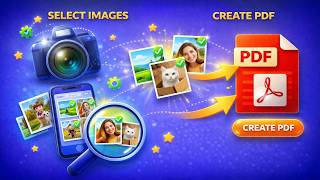
Select multiple images and combine them into a single PDF document. Drag to reorder pages, adjust quality settings, and create professional PDFs in seconds. Works offline, processes locally, keeps your files private.
Create PDF from Images
12 images -> Document.pdf
Select images, arrange order, and combine into a single PDF.
Note: Drag to reorder pages before creating your PDF.
Why Desktop Image-to-PDF Beats Online Converters
| Feature | Online Tools | Diwadi Desktop |
|---|---|---|
| Upload Required | ❌ Required | 🎯 Never |
| File Size Limit | ❌ 50MB max | ♾️ Unlimited |
| Speed | ⏳ Slow (upload/download) | ⚡ Instant |
| Batch Processing | ❌ 1 file | ✅ 1000s |
| Privacy | ⚠️ Risky (cloud upload) | 🔒 100% Local |
| AI Features | ❌ No | 🤖 Yes |
| Offline | ❌ No | ✅ Yes |
| Cost | Free | Free ✅ |
How It Works
Download & Install
Takes just 30 seconds. No account, no credit card required.
Browse & Select Your Selected Images
Navigate your files like a regular file browser. Batch processing supported.
Get Combined PDF (Instant)
Processing happens locally on your computer. No upload wait.
Why Choose Diwadi Desktop?
Privacy First
Files never leave your computer. No cloud upload, no data collection, 100% local.
Lightning Fast
Process files 10x faster than online tools. No upload wait, no download wait.
No Limits
Convert unlimited files of any size. Batch process thousands in one click.
AI-Powered
Smart formatting detection, auto-cleanup, better accuracy.
Works Offline
No internet required. Perfect for flights, secure environments.
Free to Use
No trial limits, no watermarks, no credit card required.
When You Need This
Real scenarios where combining images into PDF saves time and creates professional documents.
Creating photo albums
Combine vacation photos, event pictures, or family memories into a single PDF that's easy to share and print as a booklet.
Submitting scanned documents
Scan multiple pages of a document as images, then combine them into a single PDF for official submissions, applications, or records.
Creating portfolios
Compile design work, artwork, or photography into a professional PDF portfolio that's easy to email to clients or employers.
Archiving receipts and invoices
Photograph or scan receipts and invoices, then combine them into organized monthly or yearly PDF archives for accounting.
Frequently Asked Questions
What image formats can I convert to PDF?
Diwadi supports all common image formats including JPG, JPEG, PNG, BMP, TIFF, WebP, and HEIC. Mix different formats in the same PDF without any issues.
Can I reorder images before creating the PDF?
Yes! Simply drag and drop images to arrange them in your preferred order. The PDF pages will follow the exact sequence you set.
Is there a limit on how many images I can combine?
No practical limit. Combine hundreds of images into a single PDF. Processing happens locally on your computer, so speed depends on your hardware.
Can I adjust the image quality in the PDF?
Yes! Choose between high quality (larger file size) or compressed (smaller file size) output. Perfect for balancing quality with file size requirements.
Will my images be uploaded to any server?
Never. All processing happens 100% locally on your computer. Your images never leave your device, ensuring complete privacy.
Can I set the page size for the PDF?
Diwadi automatically fits images to standard page sizes or can match the original image dimensions. Each image becomes a separate page in the PDF.
How do I select multiple images at once?
Click the add images button and select multiple files using Ctrl+Click or Shift+Click. You can also drag and drop images directly into Diwadi.
Can I add more images after starting?
Absolutely! Add more images at any time before creating the PDF. Remove unwanted images with a single click. Full control until you're ready to convert.